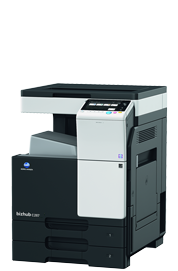
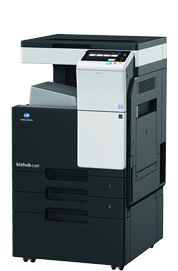
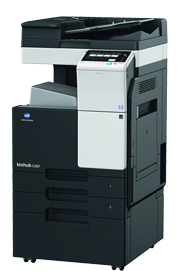
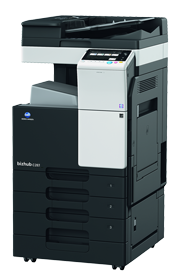
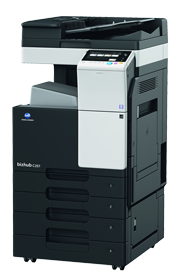
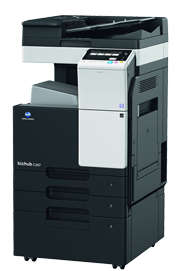
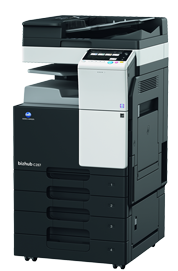
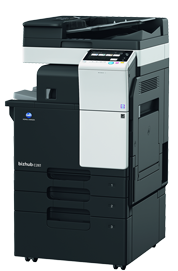
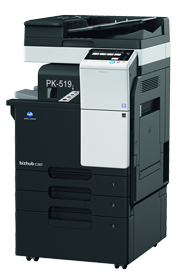
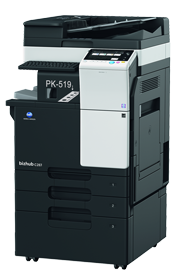
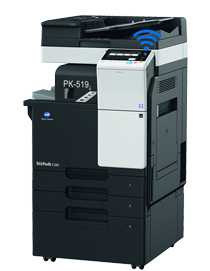
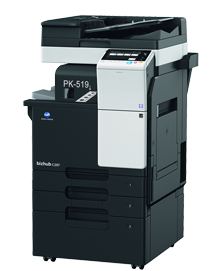
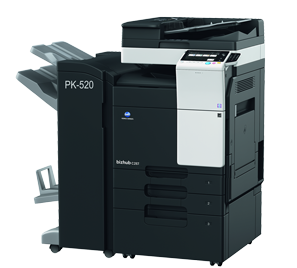
Key Features
• Speed A4/A3: black & white 22/14 ppm
• Paper formats: A5 - A3
• 7 inches colour touch panel with multi-touch support
• Standard web browser to support web-based apps
• Mobile printing support (AirPrint, Google Cloud Print, etc.)
• NFC autentification support (near field communication)
• Modular finishing and paper tray options for customised configurations
• Emperon Print System Exclusive to Konica Minolta, the Emperon Print System is built in-house and provides seamless print/scan functionality with PCL5e/c, PCL6/PS3 emulation, and a native XPS interpreter
Functionalities
Print
- MyTab - print driver customisation
- Carbon copy print - single page printing from multiple trays with different design;
- Direct print - driverless printing of PDF, XPS, DOCx, XLSx, PPTx, JPEG, TIFF, PS and PCL
- Smart job queue - unprintable jobs e.g. because of unavailable paper size (copy, print and fax) are bypassed by consecutive jobs
- Toner safe mode - helps save toner by reducing toner consumption e.g. for draft prints
- Mobile Printing - Possibility to directly print documents from a mobile device
Copy
- Job preview - Illustrates selected copy functions on screen
- Custom function bar - Up to 2 x 7 copy functions can be freely selected for the main copy screen
- Blank page removal - automatic deletion of blank pages e.g. when copying mixed simplex and duplex documents
- Card shot - front and back side original copy on same side e.g. for passports
Scan
- Scan to Me/Home - direct scan to own email address (Me) or SMB folder (Home) based on Active Directory information
- Scan preview - provides a realtime preview of scanned originals for checking before sending
- Scan annotation - stamping of e.g. date/time, filing number or custom text on scans for archiving purposes
- Scan programs - presetting of original, scan file and destination for regular scan jobs
- Blank page removal - automatic deletion of blank pages e.g. when scanning mixed simplex and duplex documents
Fax
- IP Fax - sending of fax messages via network between Konica Minolta MFPs; supports colour and b/w
- PC Fax - direct fax transmission from the PC
- Fax forward - forwarding of incoming fax documents by email or to SMB folder instead of printing
- Shared address book - the MFP internal address book can be shared to the PC fax client
- Tray selection - choice of input tray / print media and output tray for easy visbility of incoming faxes
Box Unit
- Box function - Storing of print, copy, scan and fax jobs for recall to send and print
- Personal, Group and Public User - access definition for different boxes
- Sharing - copying of documents from user box to user box
- Online access userbox - file access via web browser or box operator utility
- Auto deletion - automatic deletion of user box stored files after a definable period
Security
- Authentication - user access by password, username + password or fingervein scanner
- Access rights function - access rights can be granted on user level (up to 1000 accounts on MFP)
- Data encryption - encryption of data stored on hard disc and password protection for hard disc access
- Temporary data deletion - copy, print, scan and fax job data are automatically deleted after job completion
- Network security - support for SSL/TLS, HTTPS, 802.1x and IPsec
Green
- Dynamic eco Timer - automatic analysis of working hours and adjustment of sleep mode timing
- ECO scan - scanning of documents without warm-up of the print engine
- ECO print - touchscreen panel does not light up for printing out of sleep mode
- Weekly timer - sleep mode timer setting on day and date basis
- ECO meter - counter for eco related items e.g. power consumption
Konica Minolta Print Service (Android)
The Konica Minolta Print Service is an application which lets you print directly from devices running Android 4.4 (KitKat) or later. Documents such as photographs, web pages and PDF files can be printed easily to Konica Minolta-certified output devices via a wireless LAN. Available devices are Android 4.4 / 5.0 / 5.1 / 6.0 supported smartphones and tablet devices. When you want to print display the screen and tap the menu button on the top right. Printing is only possible from MFPs and printers with the same subnet connection as the Android device in use.
PageScope Mobile (iOS & Android)
"PageScope Mobile for iPhone/iPad is an application that allows you to easily connect to KONICA MINOLTA printing devices from your iPhone, iPad or iPod touch using Wi-Fi. It enables you to print documents and images as well as import scanned data.
All bizhub operations from logging in (user authentication) to scanning and printing can be performed smoothly with your iPhone and iPad. Print out images shot with your iPhone and iPad on the spot, or share them with other devices. Also, printed documents and scanned documents can be stored in the cloud or in online storage which will facilitate information sharing and streamline work duties."
NFC Authentication and Pairing (Android)
You can place an Android terminal with Mobile for Android installed on the NFC area to establish a pairing with this machine or to perform user authentication. NFC is the standard for near-field communication that is used for connection between handheld terminals or other devices several tens of centimeters away each other. Configure a setting to support NFC on this machine. Also, set network information of this machine required to connect an Android terminal to this machine. Using NFC allows you to easily establish a pairing between this machine and an Android terminal simply by placing the Android terminal on the NFC area on the Control Panel of this machine.
AirPrint (standard)
“When you’re on the same Wi-Fi network, you’re able to print just about anything your device can display”
- You can automatically search for and print to bizhub devices on the same network as your iPhone or other device.
- Data can be sent via a wireless LAN to AirPrint-compatible bizhub devices for printing of files such as e-mails, photos and web pages.
- You can set the number of copies to be printed and single- or double-sided printing.
Mopria Print Service (standard)
The Mopria Print Service is an application which lets you print directly from devices running Android 4.4 (KitKat) or later.
- Documents such as photographs, web pages and PFD files can be printed easily via a wireless LAN to Mopria-certified output devices.
- You can search automatically for different MFPs on the same network.
- You can print documents such as e-mails, photos and web pages from MFPs which are compatible with the Mopria Print Service via a wireless LAN.
- You can set the number of prints and also change colour and b/w settings.
Wireless LAN Access Point Mode (optional)
- For environments without Wireless Network, compatible Konica Minolta MFPs now have the capability to deliver their own Wireless LAN, thanks to the Wireless LAN Access Point Mode, without the need for a third party access point (router).
- To be an interface user look for a WiFi network and select the bizhub network. Once connected, you are ready to print to this bizhub system.
- It may be necessary to update the device firmware.
- Up to five units can be connected at one time.
Optional accessories
◦ OC-513 Original Cover - Used to fix on the scanner glass the loaded original;
◦ DF-628 Reverse Automatic Document Feeder - Automatically feeds and scans originals by page. This unit also reverses and automatically scans 2-sided originals.
◦ PC-113 Paper Feed Cabinet - Allows you to load up to 500 sheets in the top tray and use the bottom tray as a storage box.
◦ PC-213 Paper Feed Cabinet - Allows you to load up to 1,000 sheets in the top and bottom trays.
◦ PC-413 Paper Feed Cabinet - Allows you to load up to 2,500 sheets A4 size.
◦ DK-513 Desk - Used to install this machine on the floor and storing consumables and paper
◦ JS-506 Job Separator - Install this unit onto the output tray of this machine. This unit sorts printed by copy or fax sheets.
◦ FS-533 Inner Finisher - Install this unit onto the output tray of this machine. Sorts, groups and staples printed paper before outputting it.
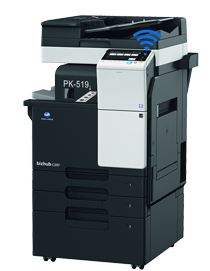
◦ PK-519 Punch Kit - Install this unit onto Finisher FS-533. This unit supports the punching function.
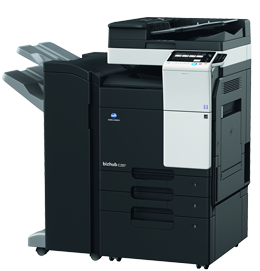
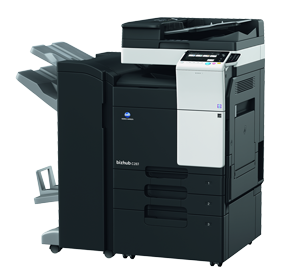
◦ FS-534 Staple Finisher - Sorts, groups and staples printed paper before outputting it. To install Finisher FS-534, Desk DK-513, Paper Feed Cabinet PC-113, PC-213, or PC-413 must be installed onto this machine.
◦ FS-534SD Booklet Finisher - Sorts, groups, staples, half-fold, letter-fold printed paper before outputting it. To install Finisher FS-534SD, Desk DK-513, Paper Feed Cabinet PC-113, PC-213, or PC-413 must be installed onto this machine.
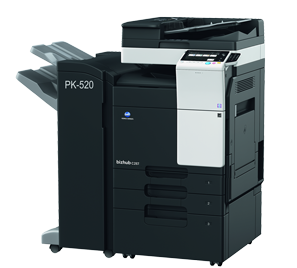
◦ PK-520 Punch Kit - Install this unit onto Finisher FS-534 or FS-534SD. This unit supports the punching function.
◦ WT-506 Working Table - Provides an area to temporarily place an original or other materials. This is also used when the authentication unit is installed.
◦ AU-102 Authentication Unit - Performs user authentication by scanning vein patterns in the finger. The Working Table WT-506 is required to install Unit AU-102.
◦ KH-102 Keyboard Holder - Install this holder to use a external keyboard. Keyboard not included
◦ EK-608 Local Interface Kit - Install this unit when using the external keyboard, card reader or Au-102 authentication unit. This unit is equipped with a speaker
◦ EK-609 Local Interface Kit - Install this unit when connecting to the external keyboard, card reader or AU-102 and Bluetooth-enabled device. This unit is equipped with a speaker and a receiving device for Bluetooth communication
◦ FK-513 Fax Kit - Used to operate this machine as a fax machine. Alternatively, this kit allows more telephone lines to be connected
◦ SP-501 Stamp Unit - Stamps the scanned original when sending a fax. This unit allows you to check that the original has been scanned
◦ Stamp 2 Spare TX Marker - Replacement stamp for the Stamp Unit SP-501
◦ CU-101 Air Cleaning - Air purifier system for Konica Minolta bizhub equipment
◦ SX-BR-4600 Wireless LAN - Wireless LAN to network connector
◦ UK-212 Upgrade Kit - Embedded Wi-Fi for both bizhub Remote Access & normal Wi-Fi. (EK-608 or EK-609 required.)
◦ UK-211 Upgrade Kit - Install this unit when using Web browser, PDF processing, searchable PDF, My Panel, My Address, or special fonts
◦ LK-102v3 i-Option License Kit - Supports the PDF processing function that is one of the advanced functions
◦ LK-105 v4 i-Option License Kit - Supports the searchable PDF function that is one of the advanced functions
◦ LK-106 i-Option License Kit - Used to add a bar code font that is one of special fonts
◦ LK-107 i-Option License Kit - Used to add a unicode font that is one of special fonts
◦ LK-108 i-Option License Kit - Used to add an OCR font that is one of special fonts.
◦ LK-110v2 i-Option License Kit - Generates various file formats incl. DOCX and XLSX pack
◦ LK-111 i-Option License Kit - Used to add Native ThinPrint Client;
◦ LK-115 v2 i-Option License Kit - Trusted Platform Module (TMP) for protection of data encryption and decryption.